
How to record well
Checking the take
Side view
If the app couldn't read a side recording well, an Error Recording message pops up as soon as it's done. It tells you what to adjust before you record again. The usual causes are the light, the foot or hip being hard to see, or stopping before the final beep. The recording is still saved. If you want to film anything besides a side, front, or rear, choose Free Form, and it won't give you this error message.
No message is a good start. For a closer look, play the recording in the Video view. The dots should stay on the shoulder, elbow, wrist, hip, knee, ankle, and foot. If a dot wanders, that body part was probably hidden or out of frame.
Front view
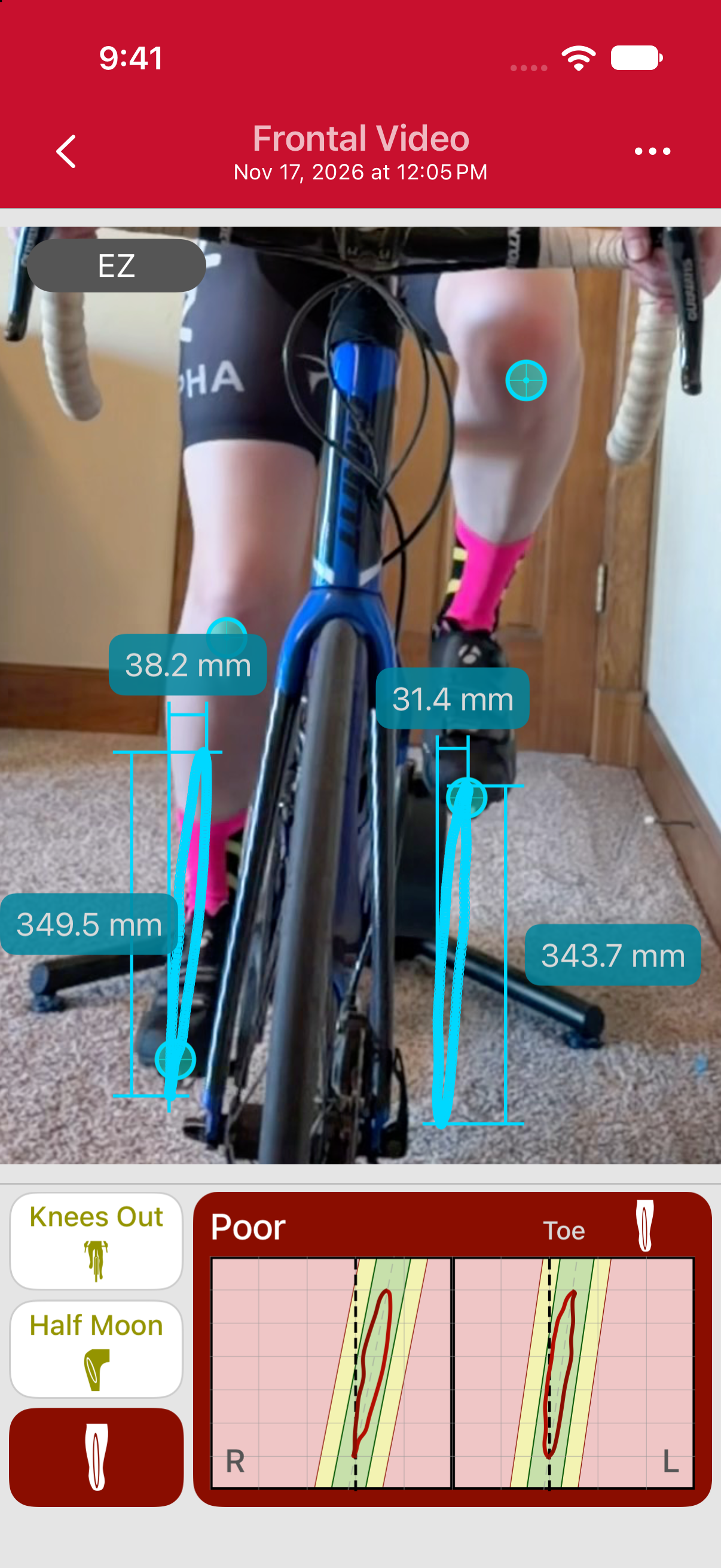
A front recording doesn't show an Error Recording message, so check toe tracking on the EZ Dashboard first. Your client's foot is fixed to the pedal, so from the front each toe follows the same oval every stroke. That steady pattern is how you can tell the take is good. A clean recording gives two smooth, narrow, upright tracks. Wavy tracks mean the camera moved.
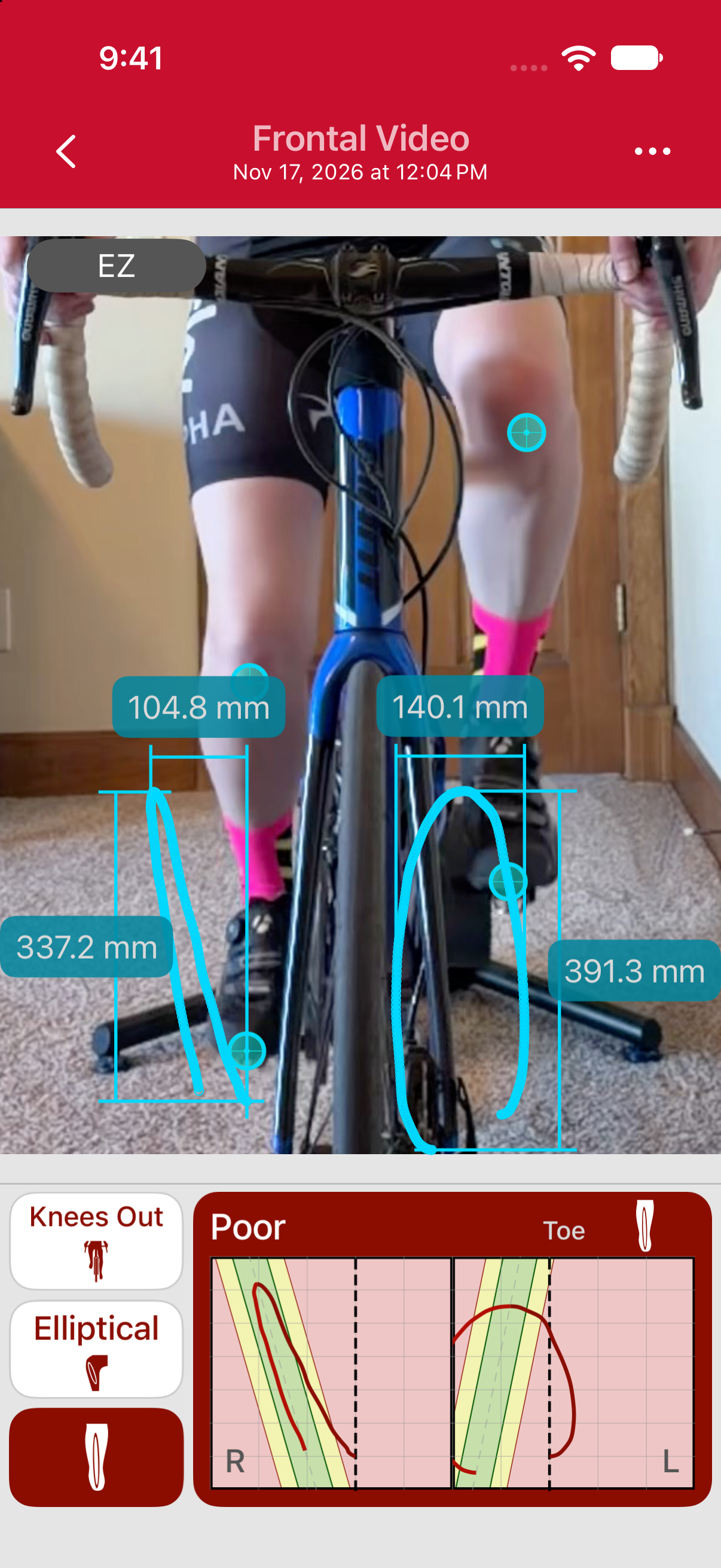
The phone moved during the recording.
Three things on the EZ Dashboard. Tap one to see it on the screenshot:
- Toe tracks
- Result
- Toe tracking
Tilted tracks mean the camera wasn't level, and a sudden jump means something blocked the view. If toe tracking reads Poor, fix the recording and record again before you read knee tilt or knee tracking.
Rear view
A rear recording doesn't show an Error Recording message either, so check it yourself. Play it in the Video view. The dots should stay on the hips, the lower back, the base of the neck, the knees, and the heels; if they wander, record again. Thoracic Angle in the measurement list is the side-to-side tilt of the upper back from the lower-back dot to the base of the neck.
Small differences are normal
Due to the nature of markerless tracking, two back-to-back recordings may differ by a few millimeters. If they differ noticeably or the app shows an Error Recording message, check the setup and record again.